
Lesson 3 — Build a Rock–Paper–Scissors Image Model
Use an Image Project in this lesson. Pose Projects begin in Lesson 4.
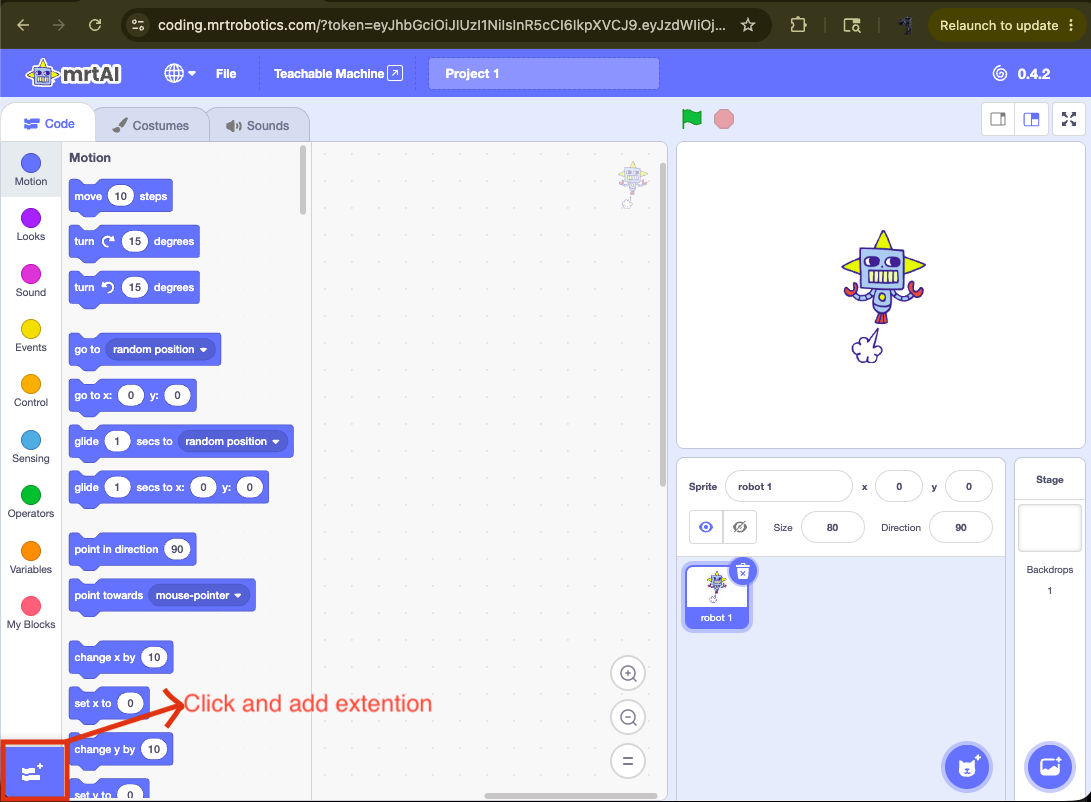
1. Open the Extension Library
In MRT AI Studio, select the extension button in the lower-left corner.
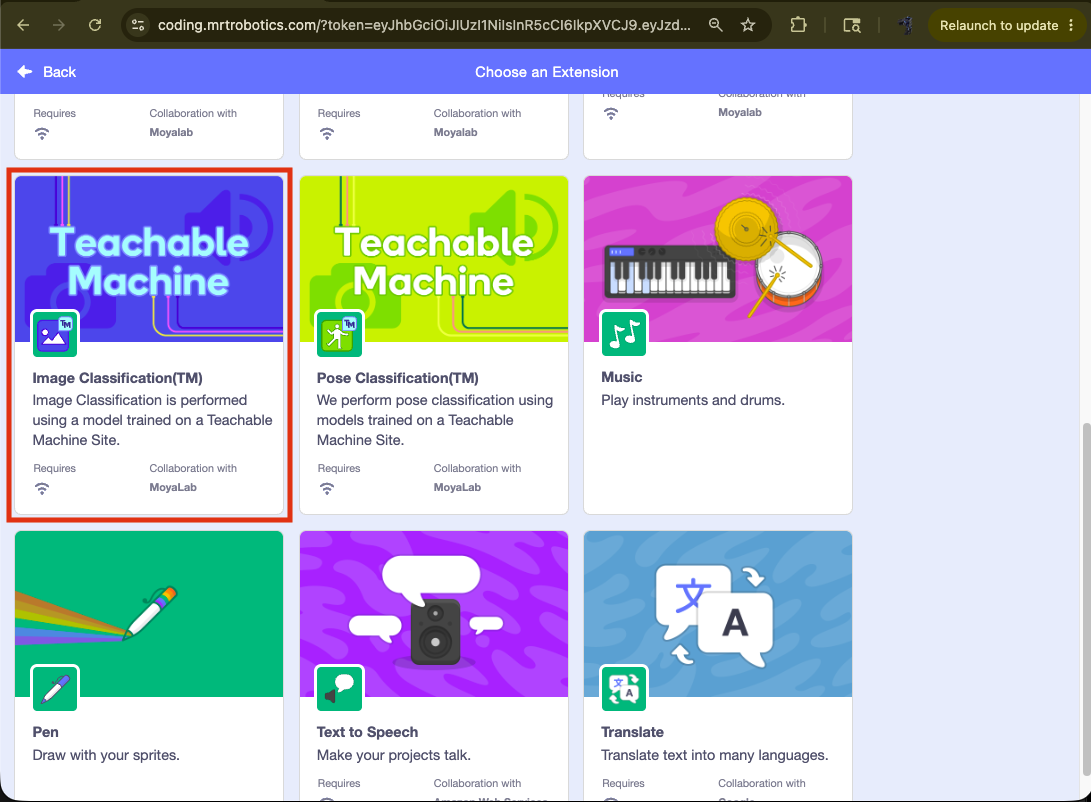
2. Add Image Project (TM)
Select the blue Image Project (TM) extension. Do not select Pose Project for this practice activity.
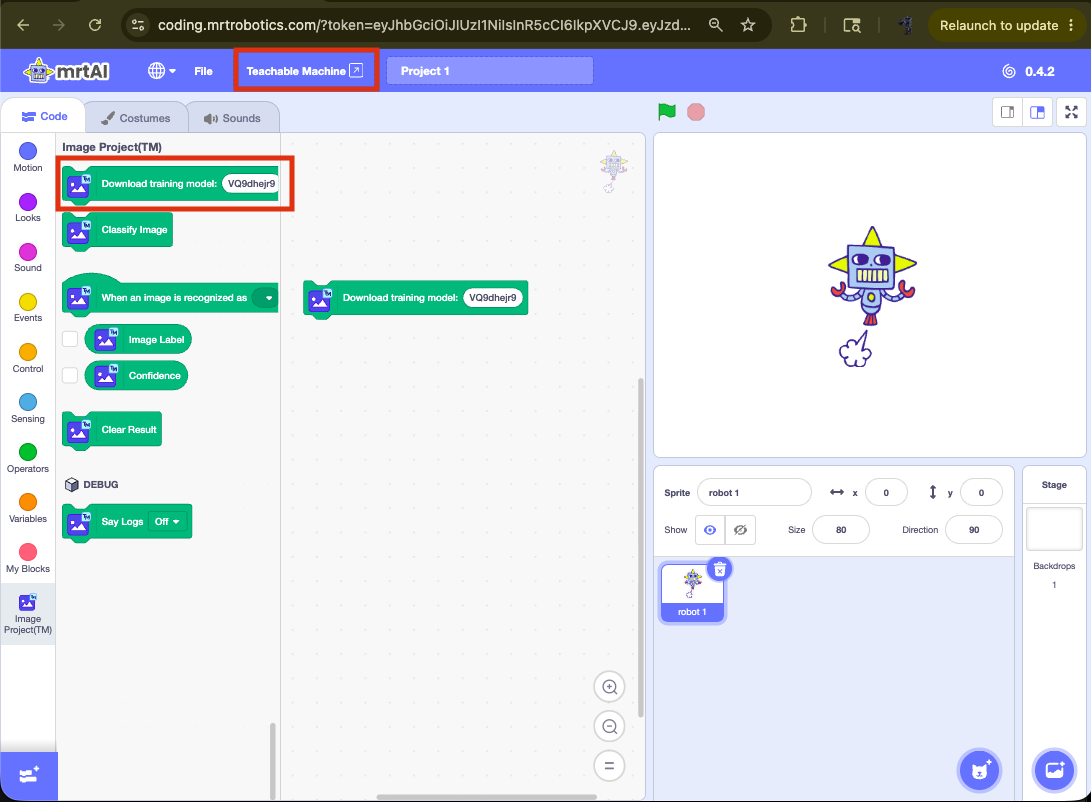
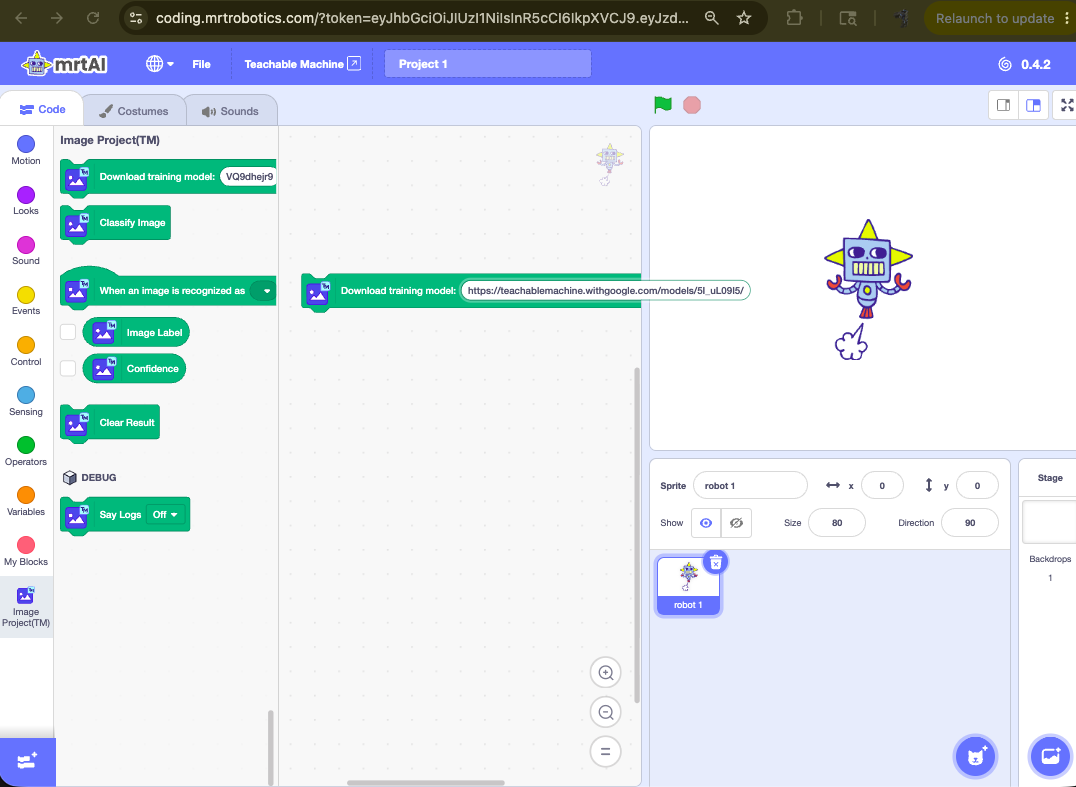
3. Prepare the Model Download Block
Drag the Download training model block to the code canvas. You will paste your model URL into this block after training.
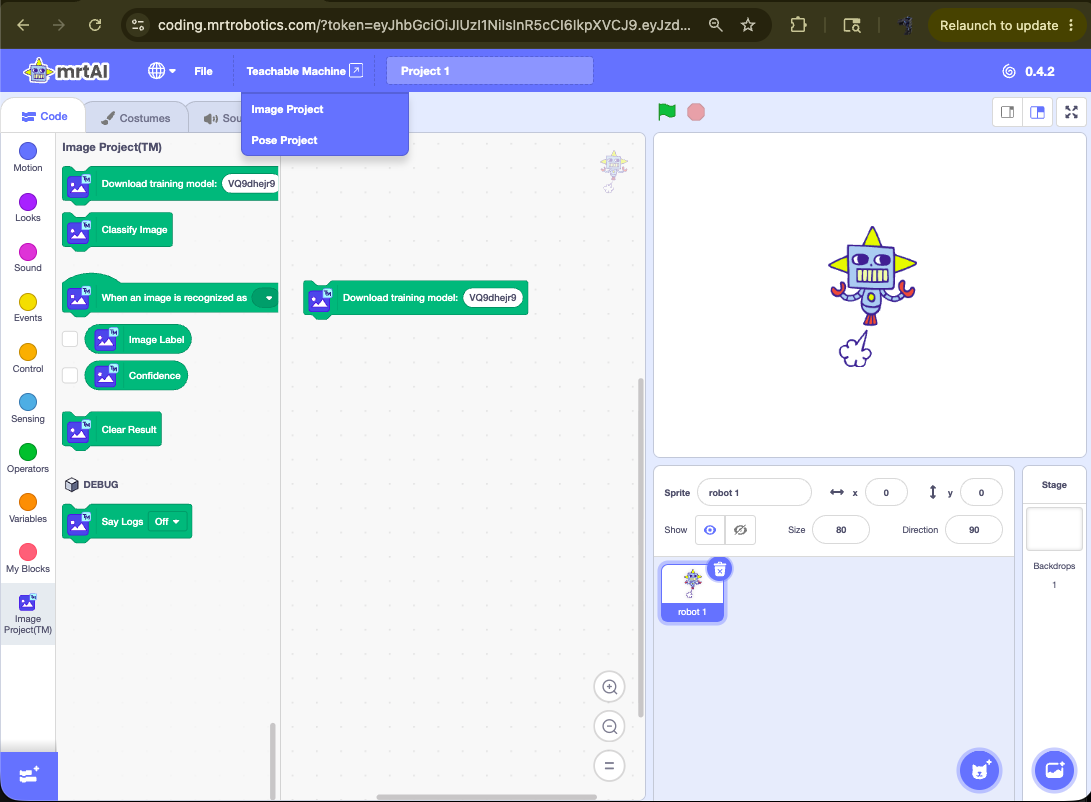
4. Start a New Image Project
Open Teachable Machine from the Studio menu and select Image Project. This opens Google Teachable Machine in a new tab.
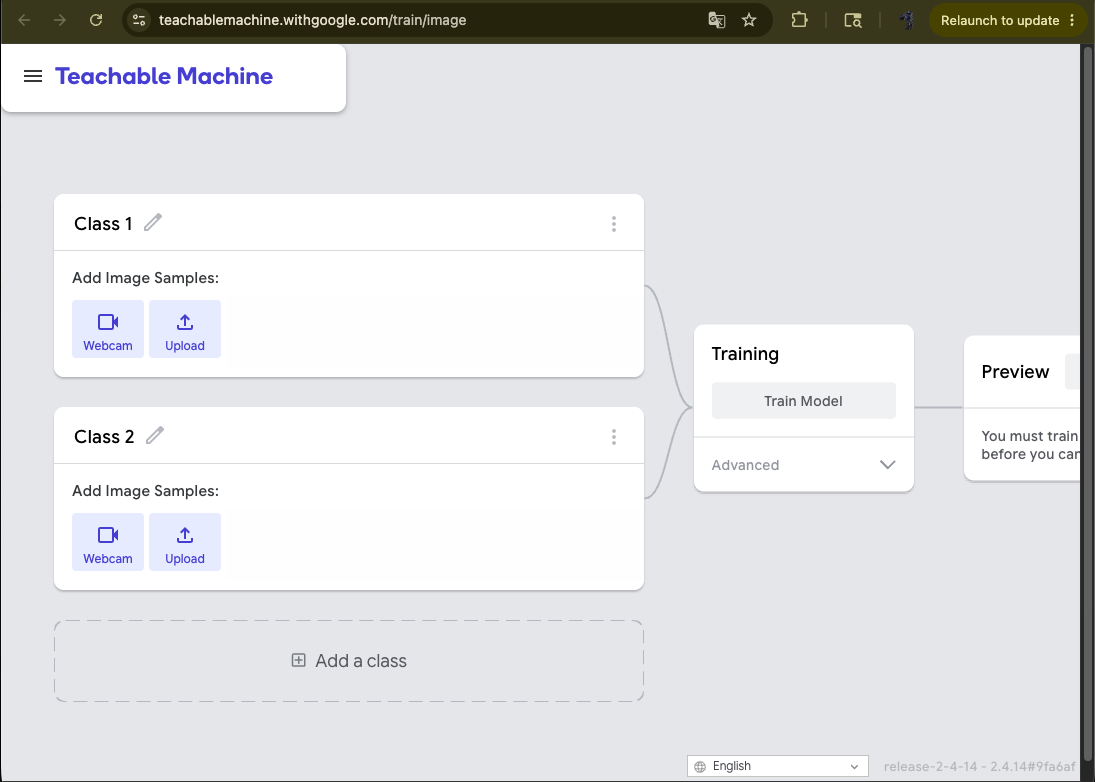
5. Create the Three Classes
- Rename Class 1 to Rock.
- Rename Class 2 to Paper.
- Select Add a class and name it Scissors.
Use these exact English class names. MRT AI Studio uses the class names to decide which event should run.
- Use Webcam and collect approximately 80–120 varied images for each class.
- Move the hand left, right, higher, lower, closer and farther away.
- Include small natural changes in angle while keeping the whole hand visible.
- Do not record Paper or Scissors inside the Rock class.
- Keep the three class sizes reasonably similar; they do not need to match exactly.
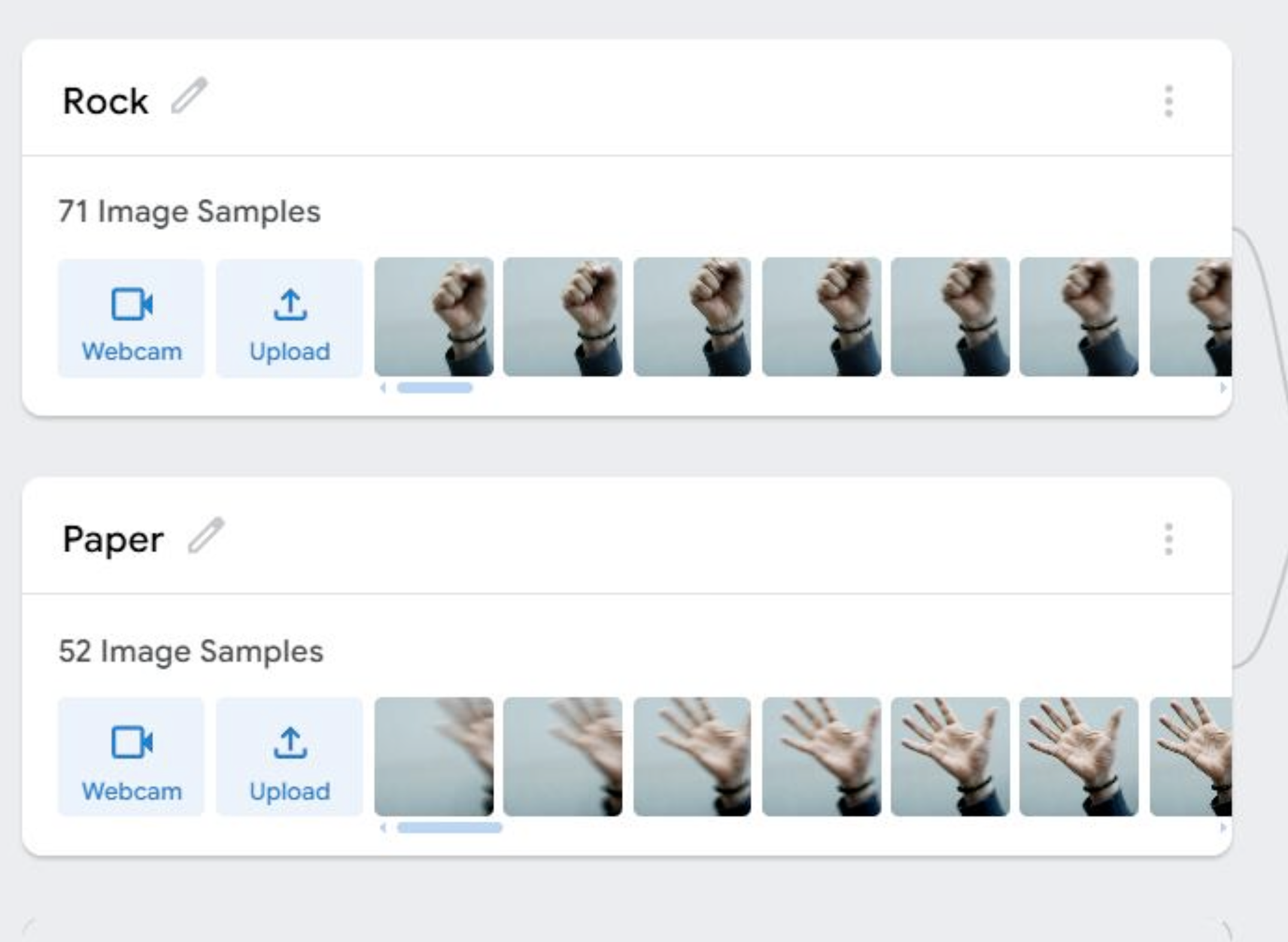
6. Check the Training Images
The screen below is an example target. Your image counts and camera background may be different.
7. Train the Image Model
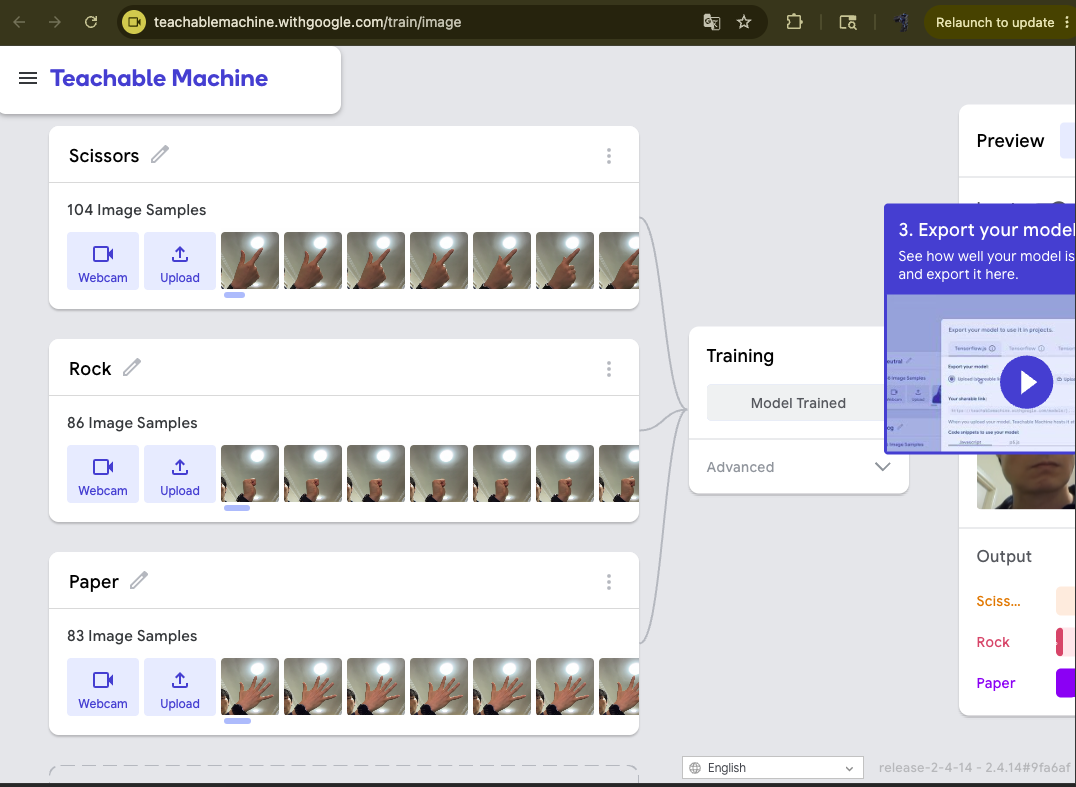
Select Train Model, keep the Teachable Machine page open and wait until training is complete. If you add or remove images later, select Train Model again.
8. Test Before Exporting
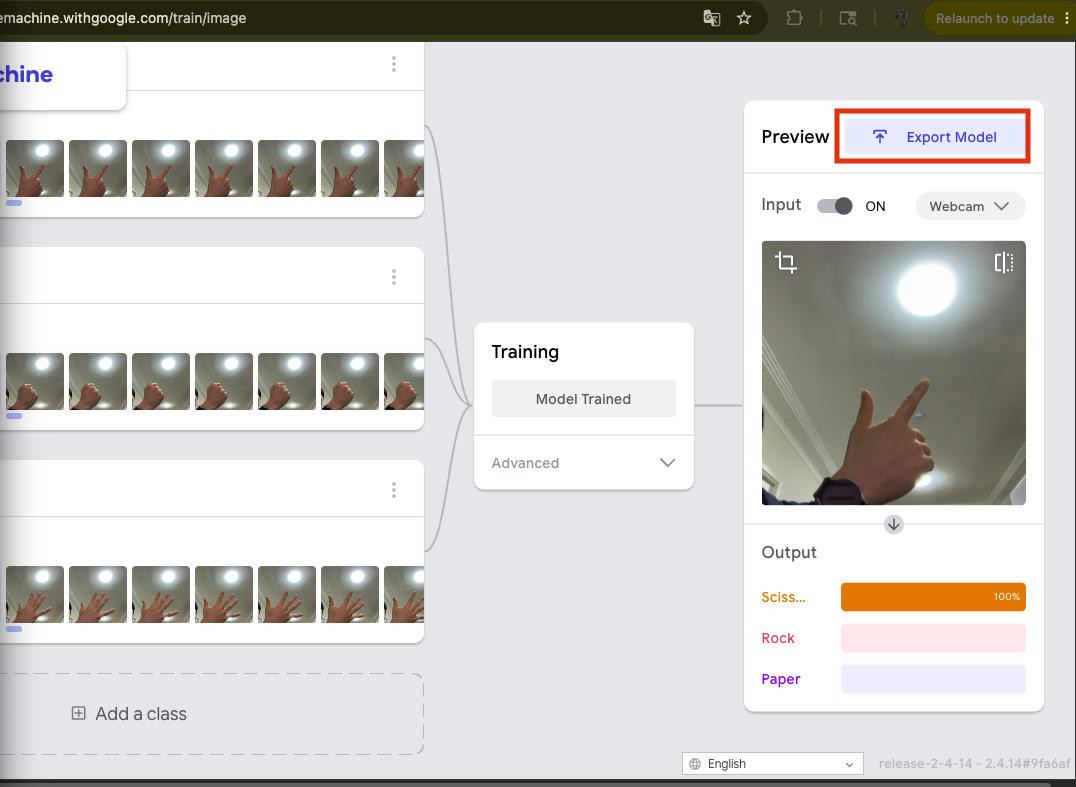
Use Preview to show Rock, Paper and Scissors several times. Test different positions and distances. Aim for at least 8 correct results out of 10 for each class; one high confidence result does not prove the whole model is reliable.
9. Upload the Trained Model
Select Export Model, keep TensorFlow.js and Upload (shareable link) selected, then select Upload my model.
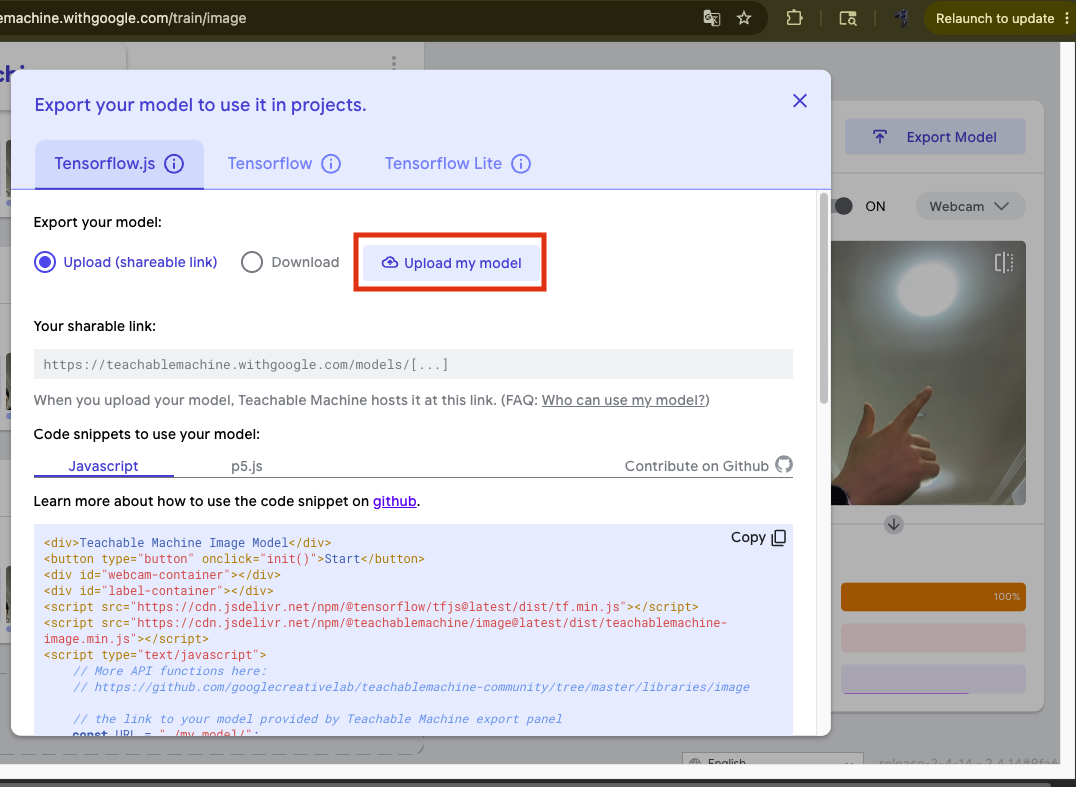
10. Copy and Save the Model URL
Wait for the upload to finish, then copy the shareable URL. Keep the complete URL, including the final slash.
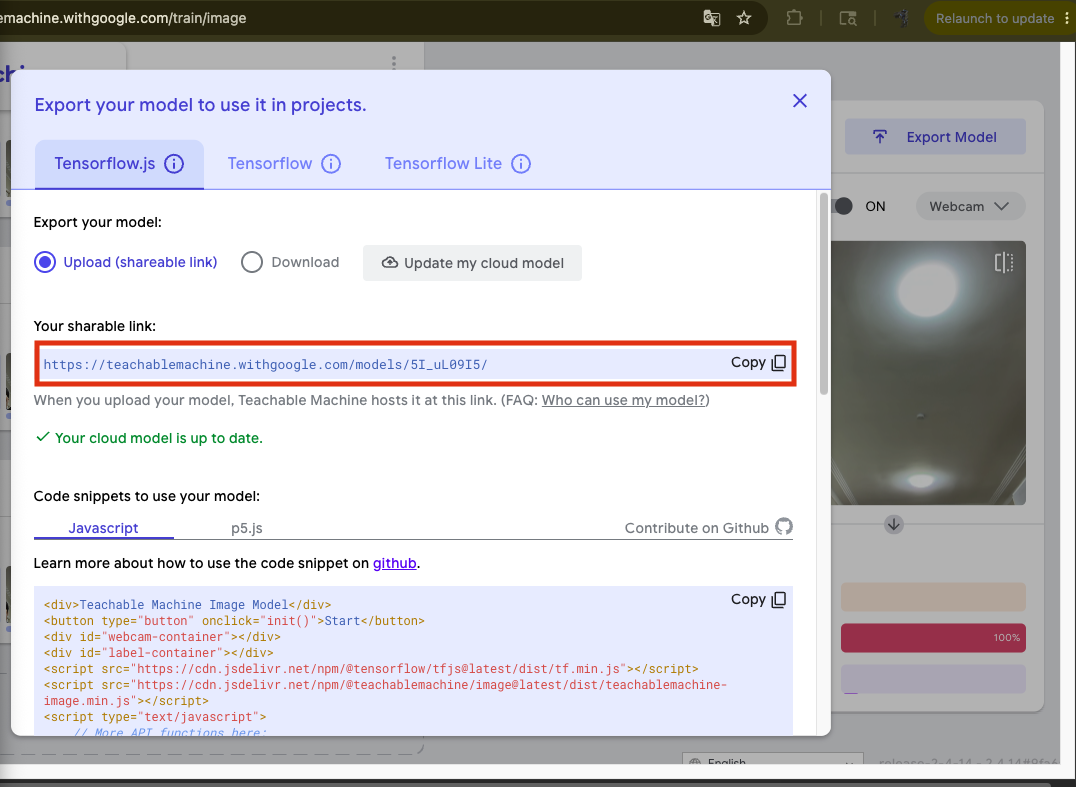
- Editable project: use the ☰ menu and download the project file so you can reopen and retrain it later.
- Model URL: save the URL shown above so MRT AI Studio can load the trained model.
11. Paste the URL into MRT AI Studio
Return to MRT AI Studio and paste your Image Model URL into the Download training model block.
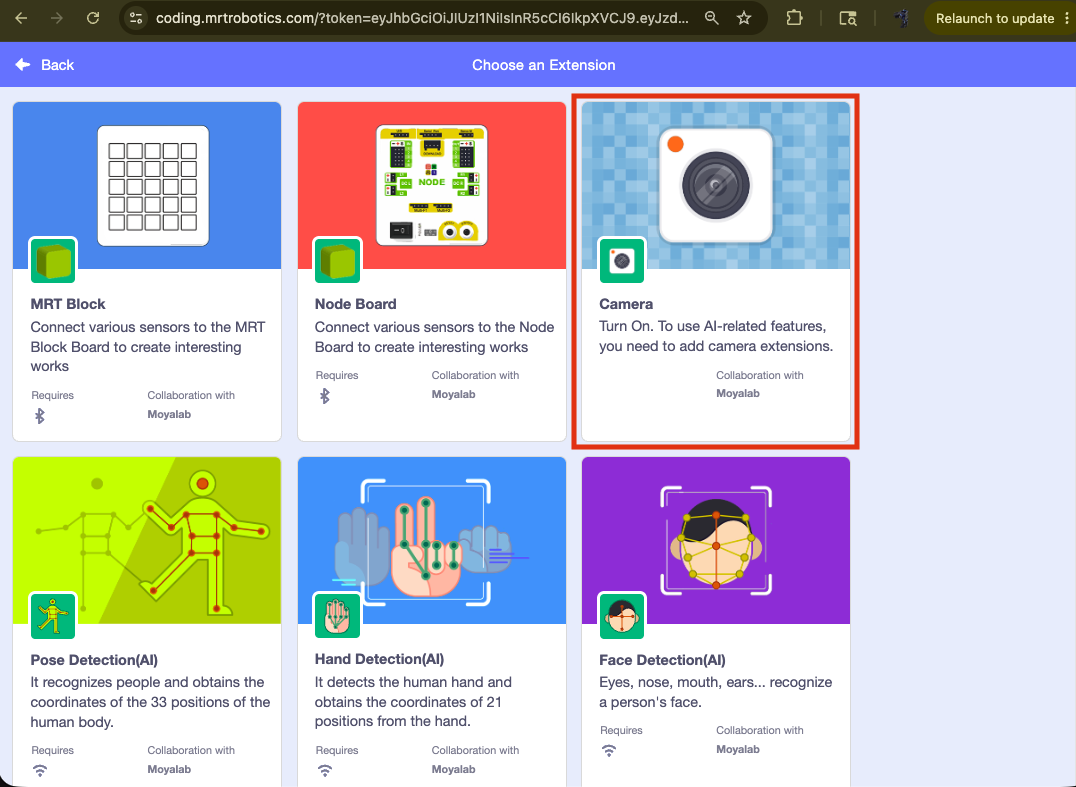
12. Add the Camera Extension
Add the Camera extension. The camera must be on before Image Classification can check live images.
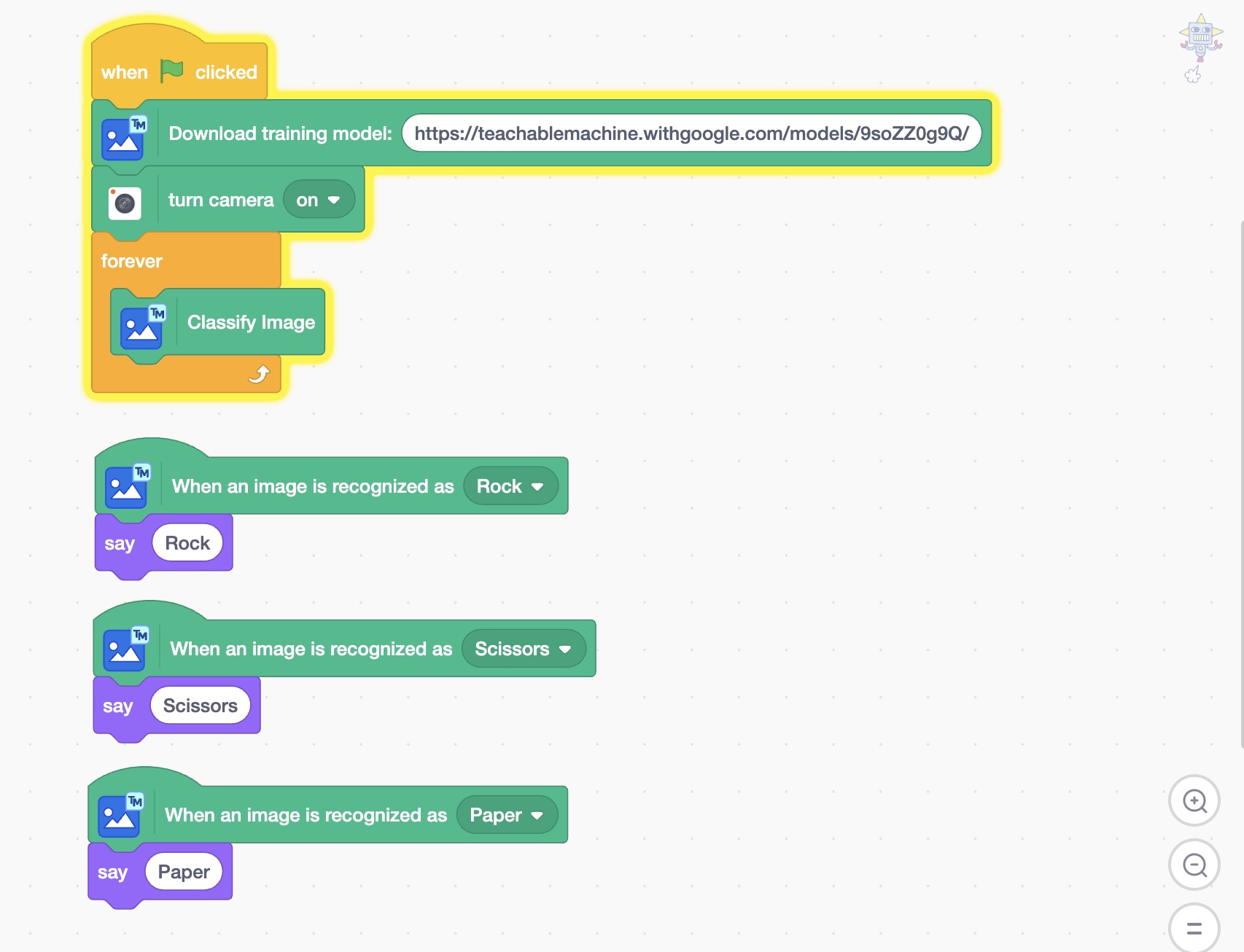
13. Build and Test the Complete Code
Build the blocks as shown. The green-flag stack downloads the model, turns on the camera and repeatedly classifies the image. Rock, Paper and Scissors each use a separate event stack.
Optional improvement: Background / No Hand
Add a fourth class containing the empty scene, a neutral hand and transitions between signs. This can reduce false actions when no clear gesture is shown. Because the existing example uses three classes, complete the basic activity first.
You have learned the complete model workflow with a small Image Project. In Lesson 4, you will apply the same data-quality process to body poses for your game or robot.